How to Delete Files and Folders in Windows 11

Deleting files and folders helps you keep your computer organized. It also frees up space for new things.
Why delete files?
Over time, your computer gathers files you no longer need. Deleting these items helps you find your important documents faster. It also clears up storage space so your computer runs better.
What happens when done?
When you delete a file, Windows usually moves it to the Recycle Bin. It stays there until you empty the bin. If you delete something by mistake, you can get it back easily. If you delete a file permanently, it is removed from your hard drive entirely.
How to move items to the Recycle Bin
This is the safest way to delete files. You can always change your mind later.
- Click the file or folder once to select it.
- Press the DELETE key on your keyboard.
- Alternatively, you can drag the item into the Recycle Bin icon on your desktop.
You can also use the toolbar in File Explorer to delete items.
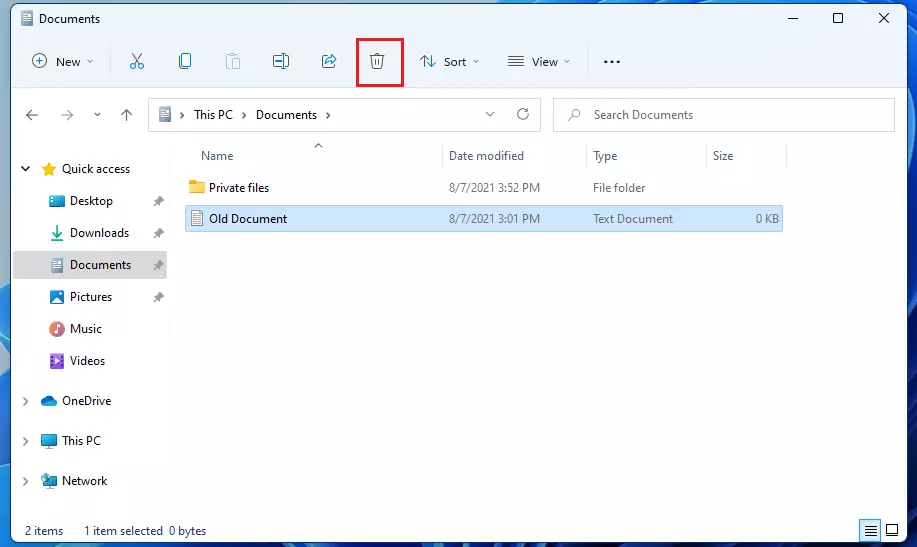
Another option is to right-click the file and select the trash can icon.
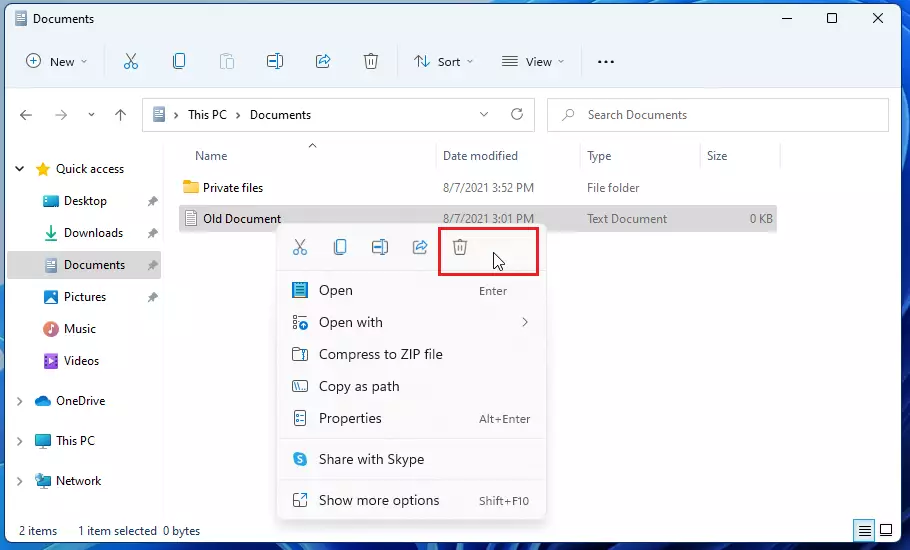
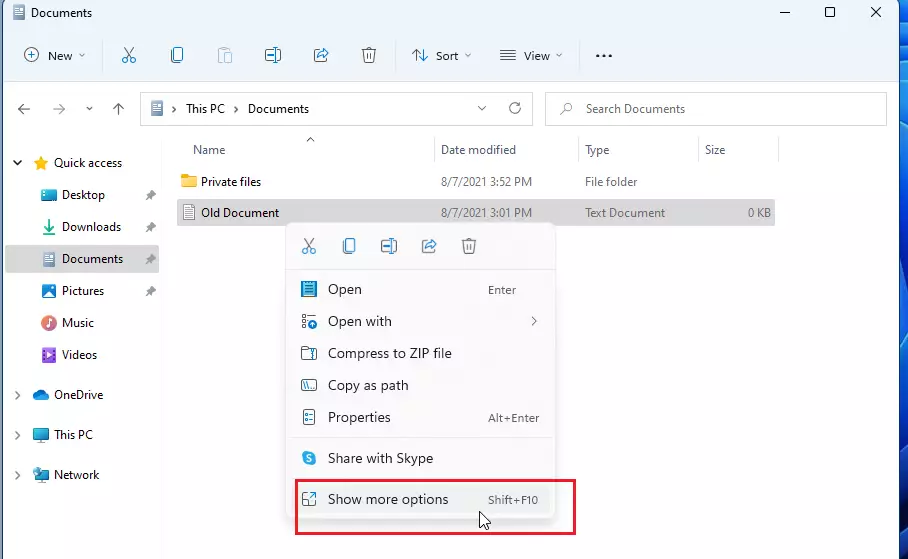
For more choices, you can right-click and select “Show more options.”
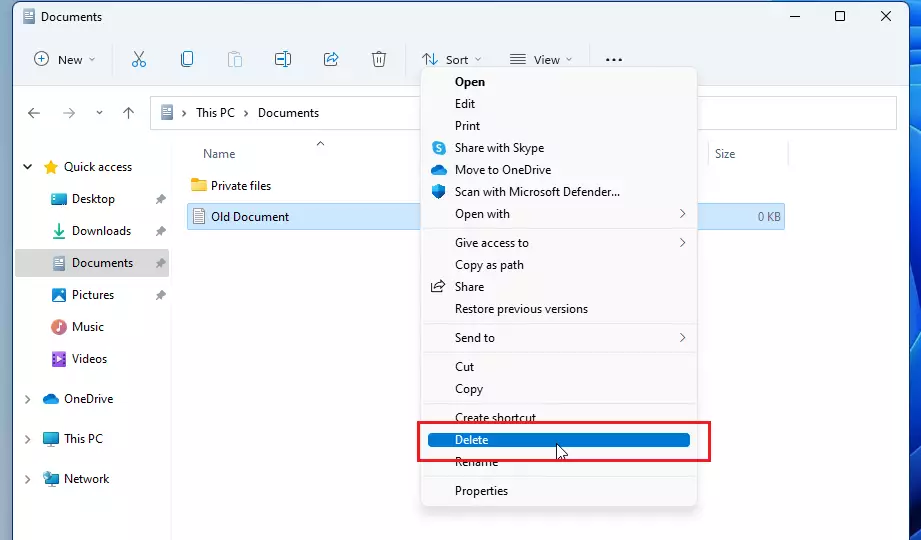
Then, click the “Delete” command from that menu.
How to restore deleted items
Did you make a mistake? You can bring files back from the Recycle Bin.
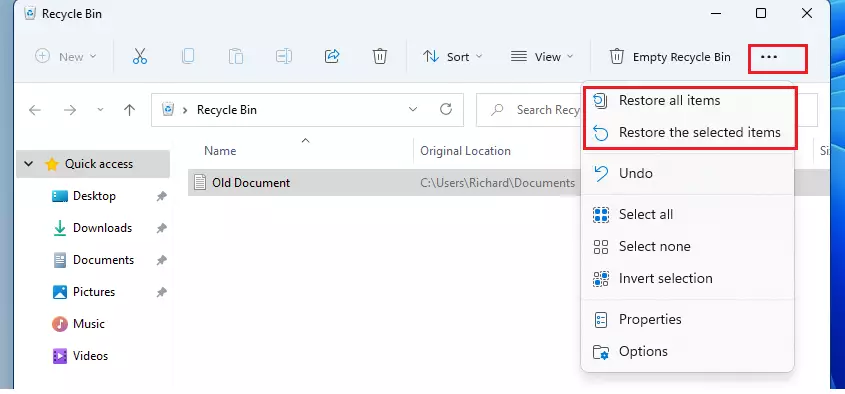
- Open the Recycle Bin on your desktop.
- Select the item you want to get back.
- Click the three dots (ellipsis) in the toolbar.
- Select Restore the selected items.
To bring everything back at once, choose Restore all items.
How to permanently delete files
If you want to delete a file forever without sending it to the Recycle Bin, follow these steps:
- Select the file or folder.
- Hold down the SHIFT key on your keyboard.
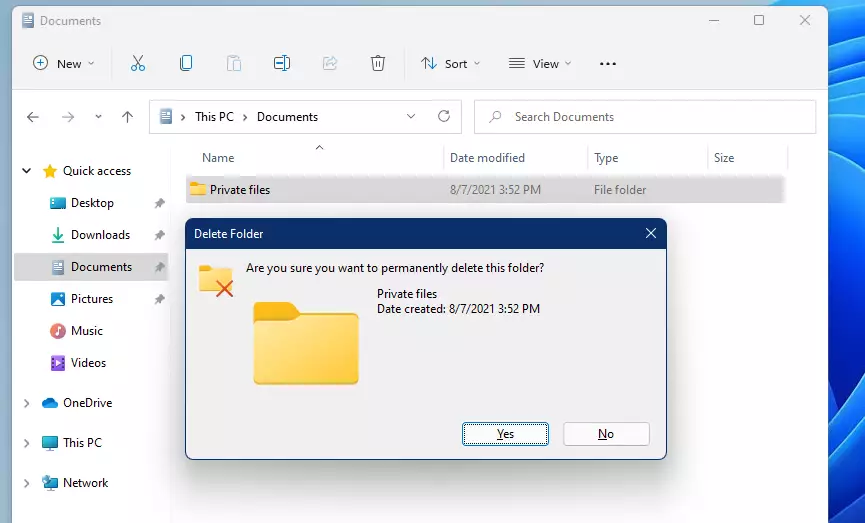
- While holding SHIFT, press the DELETE key.
Windows will ask you to confirm this action because you cannot undo it.
Advanced deletion
Sometimes, system files or files used by a specific user like C:\Users\UserAccount\Documents may require extra permissions. If you are an administrator, you can force-delete stubborn files using the Command Prompt. (Requires Admin Privileges)
Run the following command to remove a file:
del /f /q "C:\Path\To\File.txt"Summary
Deleting files in Windows 11 is easy. You can move items to the Recycle Bin to keep them safe, or use SHIFT + DELETE to remove them permanently. Remember to empty your Recycle Bin regularly to keep your computer running smoothly.
Was this guide helpful?





I try to delete folder than under users, I got message: “This action can’t be completed because the folder or a file in it is open in another program. Close the folder or file and try again.”
this folder is created by windows 11 and name is “defaultuser0”.
My question is: How to close this folder and file?
[…] the Microsoft Windows operating system. A graphical user interface lets you view, copy, move, delete, and rename files and folders and organize them […]
[…] you accidentally delete a file or folder in OneDrive, you may be able to recover it later from the OneDrive recycle bin. First, […]
[…] in the Microsoft Windows operating system. A graphical user interface lets you view, copy, move, delete, and rename files and folders and organize them in a hierarchical […]
[…] Microsoft Windows operating system. A graphical user interface lets you view, copy, move, delete, and rename files and folders and organize them […]
[…] you delete files or folders, the data isn’t initially removed from the hard disk. Instead, the space on the disk occupied […]
[…] You can delete files and folders: How to delete files and folders […]
[…] Tip: If you want to learn more about deleting files the usual way, check out this easy guide: How to Delete Files and Folders in Windows 11. […]